
See exactly where your data goes in Xero
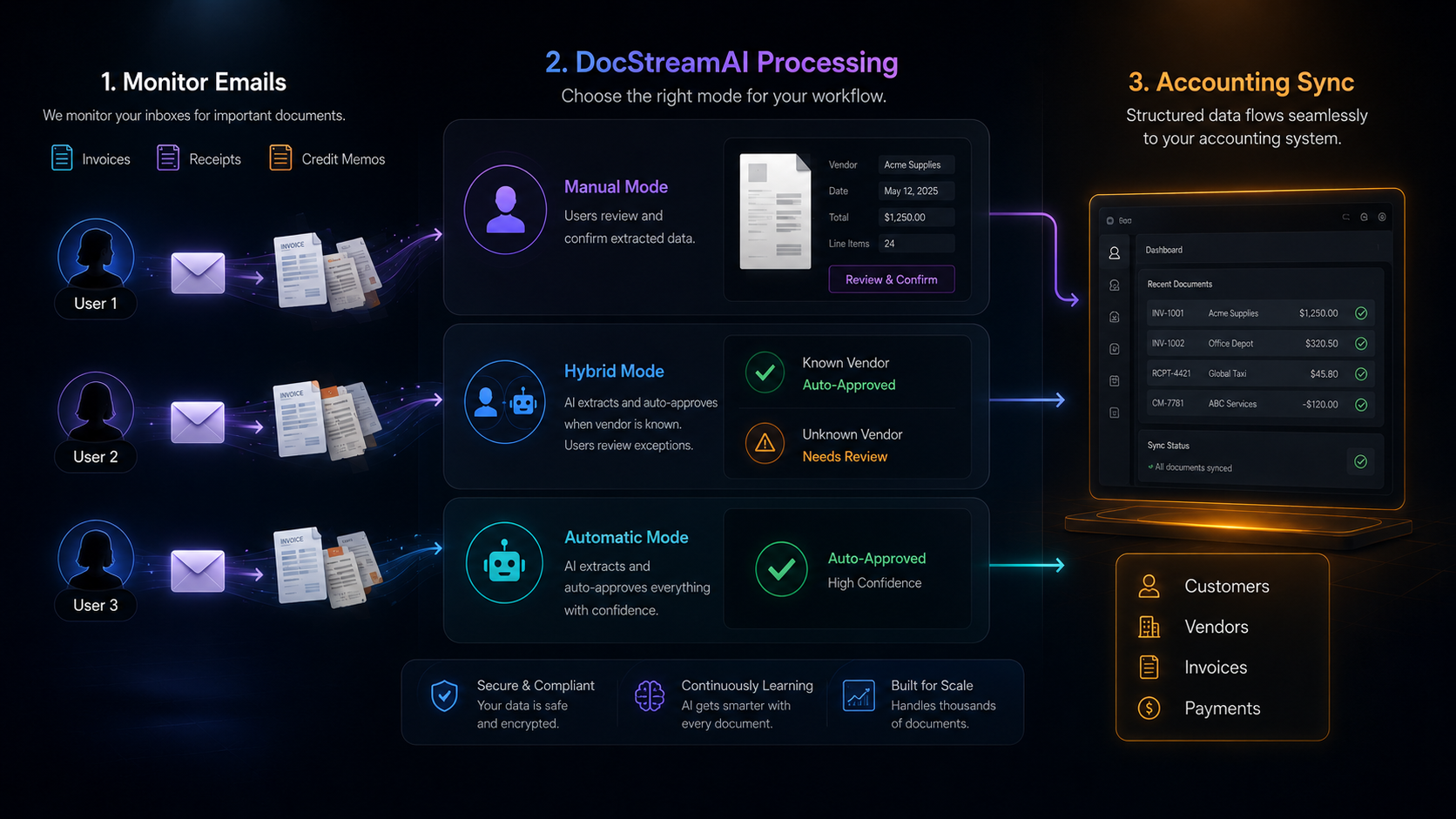
DocStreamAI monitors your team's inboxes for incoming invoices and receipts. Each document is then auto-submitted to Xero or routed through manual review on your dashboard, depending on the review settings you choose.
Invoices
Invoices land in Xero with every line item, tax, and total already mapped, ready to approve in a single click.
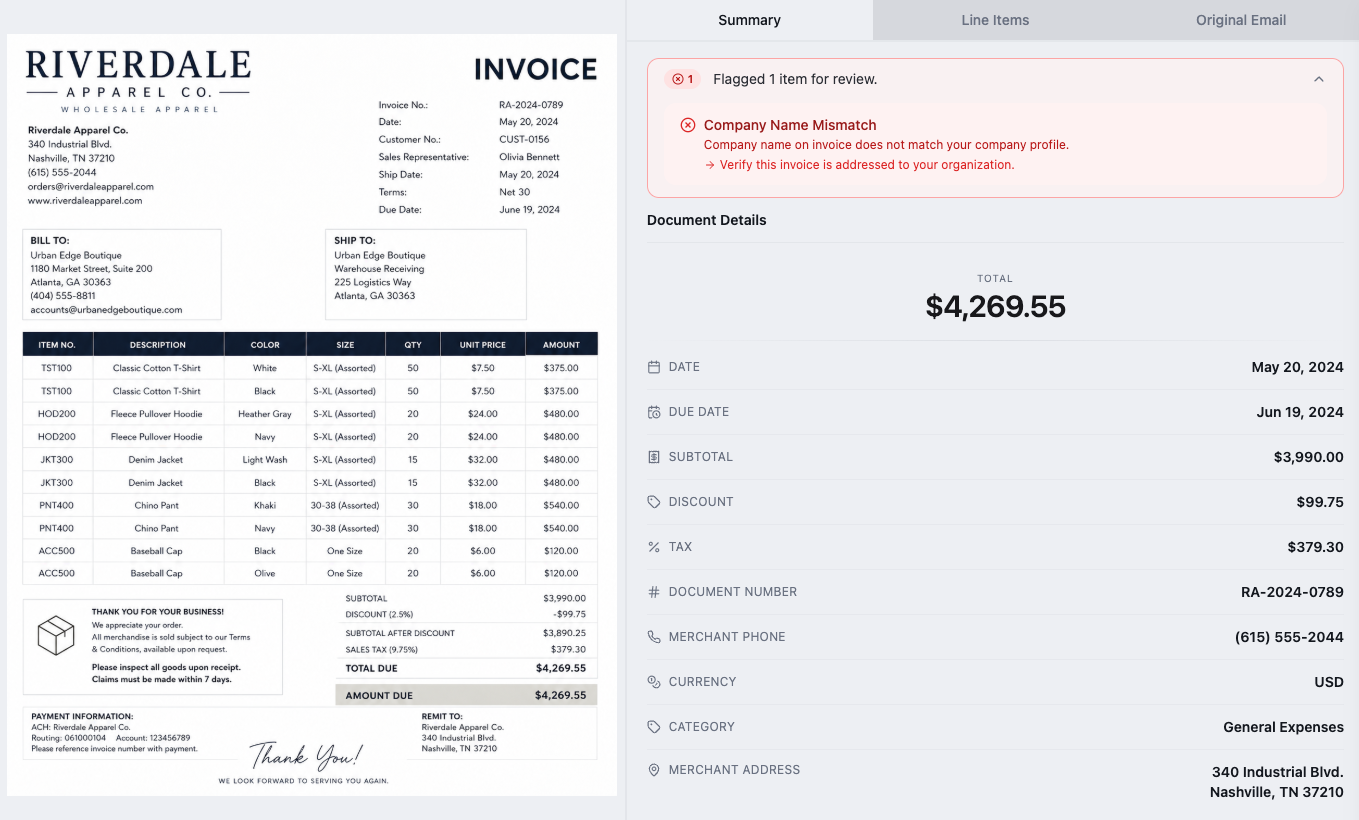
Extracted and reviewed in DocStreamAI
DocStreamAI parses every field from the invoice (vendor, line items, taxes, dates, and totals) and queues it for review on your dashboard. Make any edits you need and approve in a single click.
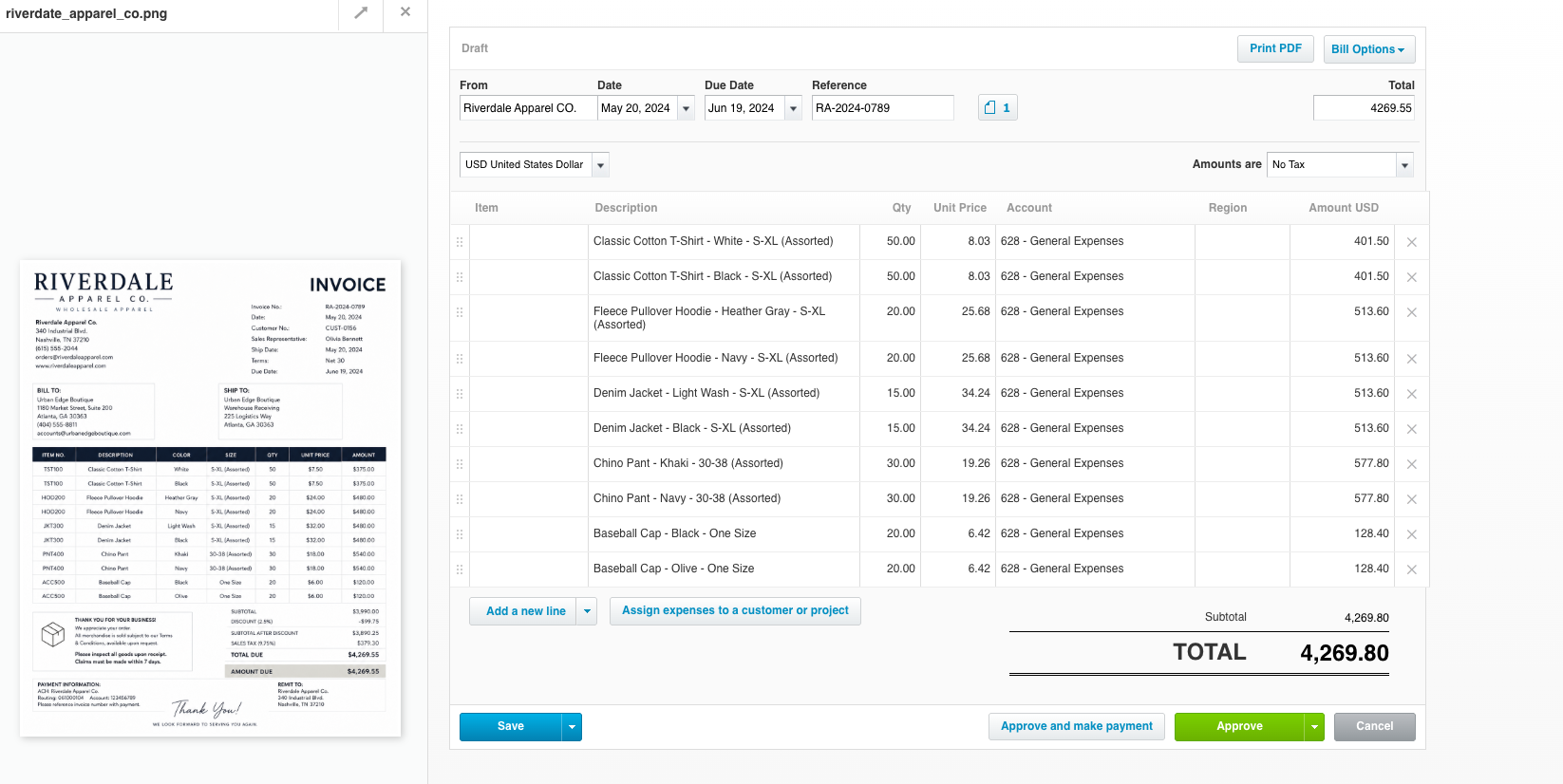
Pushed straight to Xero
On approval, that exact data is pushed to Xero through their API: contact matched, every line on the right account, totals and taxes all in place, ready to approve and pay without a single keystroke in Xero.
Receipts
Receipts get matched to the right Xero transaction and the original file is attached automatically.
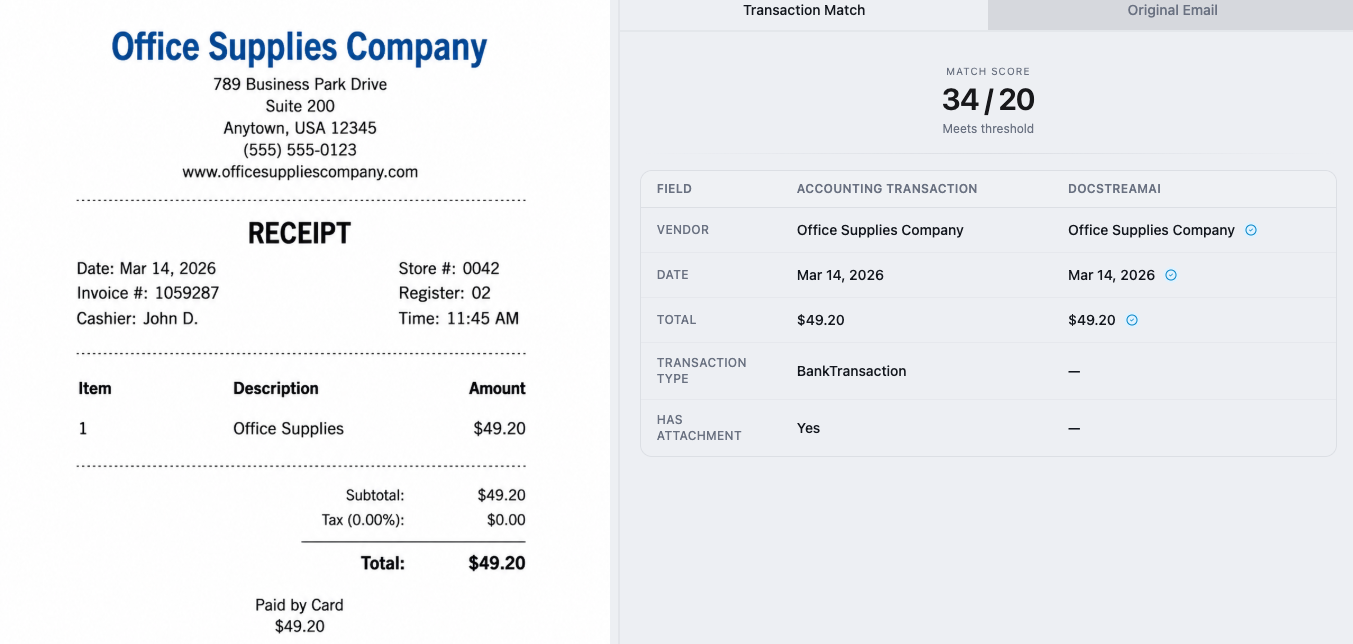
Matched in DocStreamAI
DocStreamAI reads the vendor, date, and total off the receipt and matches it against your Xero bank feed, so the right Spend Money transaction gets the right proof, with confidence scoring on every match.
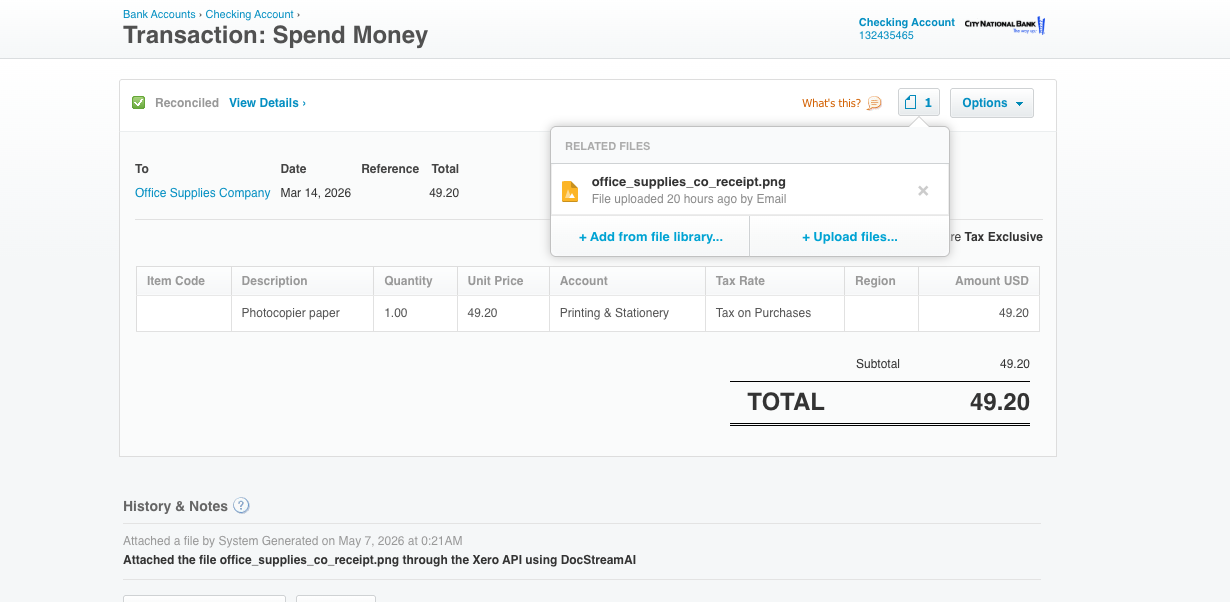
Attached via the Xero API
The receipt file is uploaded directly to the matched transaction inside Xero. The audit history records that DocStreamAI did the upload, so reviewers can always see where the file came from.
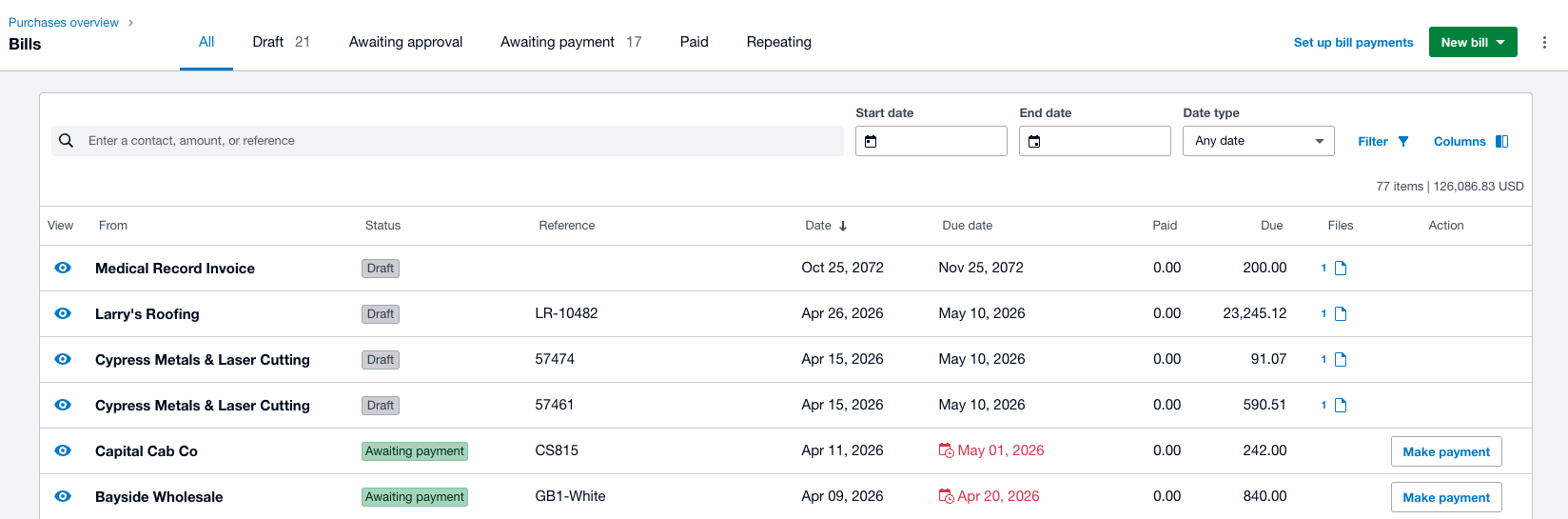
Visible across bills and transactions
Receipts also attach to matching bills in Xero's accounts payable section.